Control a Ragdoll Together Controls & Limb Inputs
Roblox defaults plus habits that keep each limb from panic-wiggling.
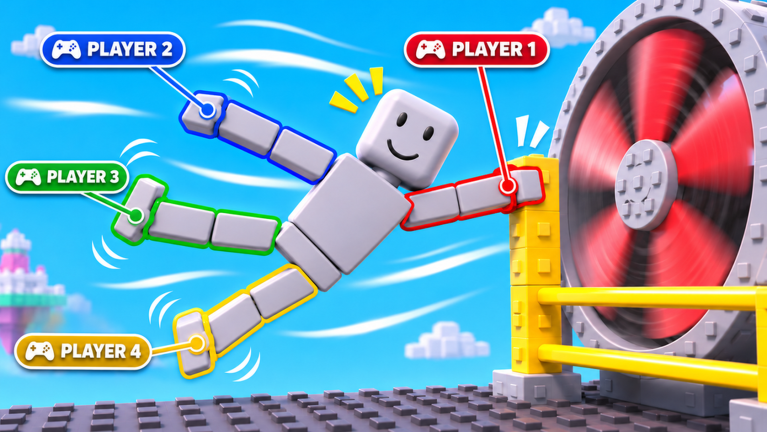
Control a Ragdoll Together! does not invent a brand-new input device—it rides normal Roblox movement defaults on PC, mobile, and console, then filters those intents through your assigned limb. That means a clean WASD tap on an arm seat does not walk the whole avatar; it tugs that arm’s contribution to the shared puppet. Mastering controls is less about remapping keys and more about discipline: when to move, when to freeze, and how to match a teammate’s timing.
Read this after Getting Started and before hard co-op tips. Hazard-specific applications live in the obstacle guide.
Platform defaults (Roblox baseline)
Exact bindings can vary with user settings, shift-lock, and touch layouts, but the common baselines are:
PC
- Move: WASD or arrow keys
- Jump: Space
- Camera: mouse look; optional right-click or shift-lock styles depending on your Roblox settings
- Chat:
/or the chat window for callouts (critical—Voice Chat is not supported in this experience)
Keep fingers light. Holding W the entire room guarantees you will yank the puppet while a leg player tries to plant.
Mobile
- Move: virtual thumbstick
- Jump: on-screen jump button
- Camera: drag on empty screen space
- Chat: use quick phrases or a headset + external voice app with friends
Mobile limb play is absolutely viable, especially on a trailing leg that mostly holds cadence. For monkey bars, a stable PC teammate on arms often feels kinder. Shrink UI clutter so your thumbstick does not overlap the jump button mid-panic.
Console
- Move: left stick
- Jump: face button jump (A / Cross depending on brand)
- Camera: right stick
- Chat: constrained—agree on stick-wiggle ready signals or use party chat outside Roblox
Console players should sit where precise typing is unnecessary: follow limbs rather than primary callout seat unless you have voice elsewhere.
Limb-specific control tips
Arms (left or right)
Arms dominate monkey bars and rock walls. Practice:
- Short taps to latch, not continuous shove.
- Release on a spoken count so both arms do not let go on different frames.
- Zero input during hammer wind-ups unless you are the designated grab saver.
If the blame system flags your arm, you likely released early or pulled sideways while legs were mid-hop.
Legs (left or right)
Legs own spikes, landings, and meteor strafes. Practice:
- Even cadence—imagine a metronome instead of sprint mashing.
- Micro-pauses on safe tiles before the next spike gap.
- Strafe with the stick/keys, not with jump spam, when meteors fall.
A common fail is jumping because you are nervous while the arm player still needs a stable base.
Head / torso influence (when available)
If the lobby exposes torso or head contribution, treat it as fine aim, not primary locomotion. Tiny leans help square the puppet on walls; big flails create false blame on limbs that were otherwise correct. When in doubt, hold neutral.
Universal discipline rules
- Neutral is a skill. Holding nothing is often the correct input.
- One mover per beat. During a counted go, only the called limbs act.
- Camera before commitment. Look at the hazard cycle fully once before the first attempt from a checkpoint.
- No revenge inputs. After a near miss, do not slam keys “to feel better.”
- Announce lag. If your ping spikes, say so before the next bar so teammates do not trust your release frame.
Suggested sensitivity and accessibility
- Lower camera sensitivity until you can track hammer arcs without over-flicking.
- On mobile, enable larger jump buttons if Roblox accessibility options allow.
- Colorblind or high-contrast OS settings help spike readability more than any script ever will (scripts are not the answer).
- Keep FPS stable; ragdoll physics already jitter without a potato client.
Practice drills (five minutes)
Drill A — Freeze test: At a Plains checkpoint, everyone holds neutral for ten seconds. If the puppet drifts, someone is leaking input.
Drill B — Counted hop: Caller says “3-2-1 jump”; only legs press jump; arms stay neutral.
Drill C — Bar tap: Arms tap forward on “tap,” release on “out,” while legs brace.
Run these drills before pride attempts on late worlds described in the worlds walkthrough.
Controllers vs keyboard in mixed parties
Mixed input parties work if the caller adapts counts to the slowest reliable platform. Do not mock mobile teammates—seat them where their strengths show (steady legs). Put the lowest-latency player on the limb that initiates hammer dashes. Party composition thoughts continue on the players hub and role priority on the tier list.
Troubleshooting “my controls feel wrong”
- Confirm you are on the limb you think you are.
- Check that another player is not also feeding the same side.
- Rebind only after you rule out panic mashing.
- Restart Roblox if input lag arrived after tabbing out.
- Re-read Getting Started if you skipped checkpoints and are tilting.
Clean controls turn the comedy ragdoll into a machine. Messy controls turn every meteor into a courtroom drama. Choose discipline.
Frequently Asked Questions
Quick answers to the most common questions.
Does Control a Ragdoll Together use custom keybinds?
It builds on standard Roblox movement defaults. The skill is applying those inputs only through your assigned limb with strict timing.
What is the biggest beginner control mistake?
Holding movement continuously. Neutral input is often correct while another limb acts.
Is mobile viable?
Yes, especially on leg roles that need steady cadence. Many squads prefer PC arms for monkey bars.
How do console players call plays without easy chat?
Use external party chat or simple ready signals. Avoid putting the primary caller on a console seat if nobody has voice elsewhere.
Where should I practice controls?
Use early Plains checkpoints for freeze and counted-hop drills before attempting mid-campaign obstacle rooms.